
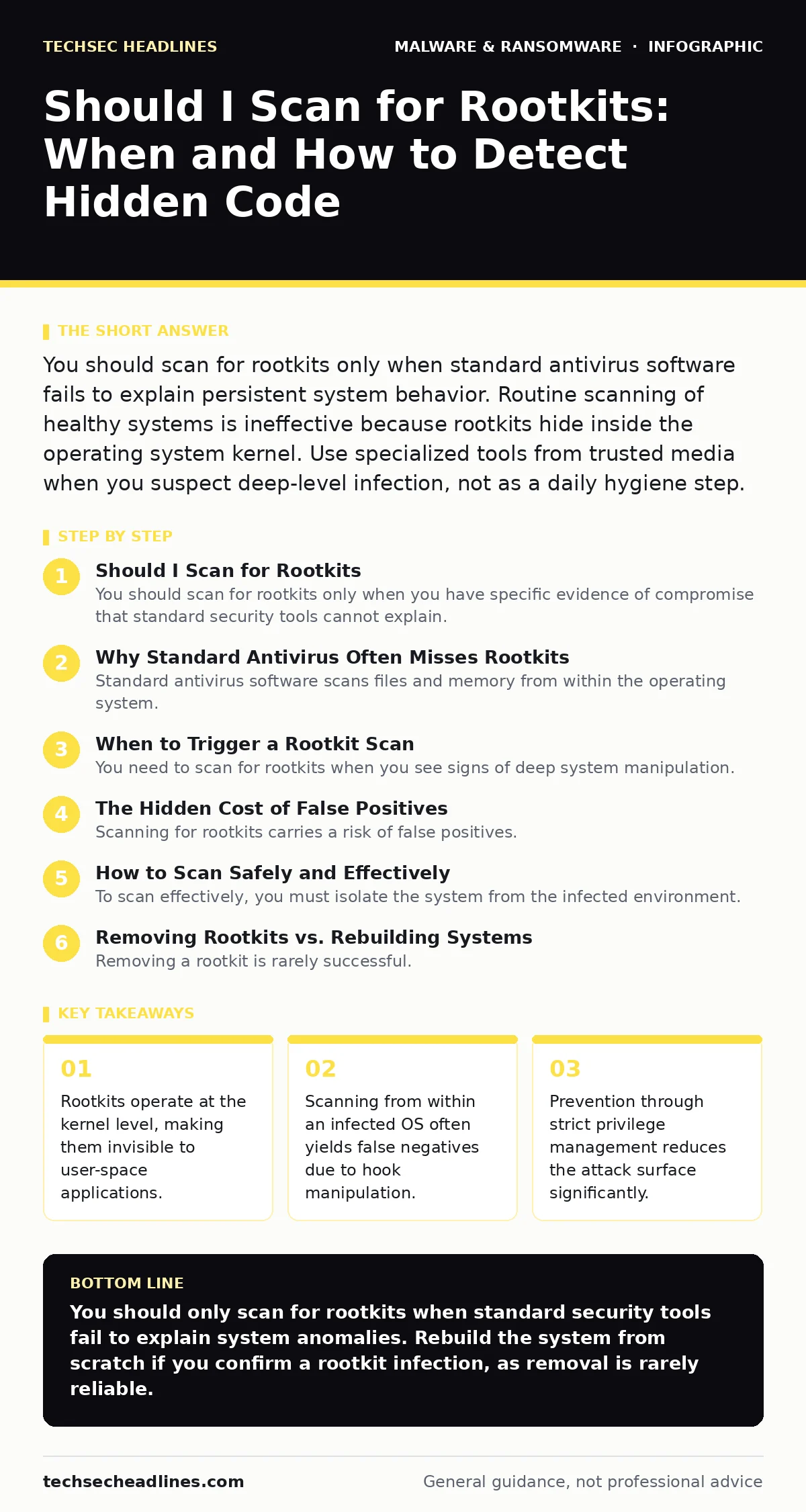
You should scan for rootkits only when standard antivirus software fails to explain persistent system behavior. Routine scanning of healthy systems is ineffective because rootkits hide inside the operating system kernel. Use specialized tools from trusted media when you suspect deep-level infection, not as a daily hygiene step.
Should I Scan for Rootkits
You should scan for rootkits only when you have specific evidence of compromise that standard security tools cannot explain. Routine scanning of healthy systems is largely ineffective because rootkits operate at the kernel level, hiding their presence from user-space applications. Most users do not need to run dedicated rootkit scanners daily. Instead, you should rely on standard endpoint detection and response platforms for general hygiene. Scanning becomes necessary when you observe unexplained network traffic, missing files, or processes that do not correspond to known applications.
Why Standard Antivirus Often Misses Rootkits
Standard antivirus software scans files and memory from within the operating system. Rootkits modify the operating system’s kernel to intercept system calls. When the antivirus asks the kernel to list running processes, the rootkit lies and omits itself. This mechanism is called hooking. The antivirus trusts the kernel’s response because it assumes the kernel is untampered. This trust model is the primary reason rootkits evade detection. You cannot trust a compromised system to tell you the truth about its own state.
When to Trigger a Rootkit Scan
You need to scan for rootkits when you see signs of deep system manipulation. Look for these specific indicators:
- System processes that appear and disappear randomly in task managers.
- Network connections to unknown IP addresses that persist after reboots.
- Files that are present in directory listings but cannot be opened or deleted.
- Security logs that show gaps or missing entries during active hours.
These symptoms suggest that something is hiding from standard views. If your endpoint protection detects nothing but the system behaves erratically, assume a kernel-level threat. Investigate further before assuming hardware failure.
The Hidden Cost of False Positives
Scanning for rootkits carries a risk of false positives. Rootkit scanners must inspect low-level memory structures and kernel modules. These areas contain complex code that legitimate drivers also use. A scanner may misidentify a legitimate driver’s memory signature as malicious. This leads to system instability or blue screens. You may spend hours investigating a clean system because the scanner flagged a standard hardware driver. This wasted effort distracts from real threats. Always verify scanner results with a second, independent tool before taking drastic action.
How to Scan Safely and Effectively
To scan effectively, you must isolate the system from the infected environment. Boot the machine from external media, such as a USB drive containing a trusted operating system. This ensures the running kernel is clean and untampered. From this external environment, you can inspect the hard drive’s file system and memory dumps without interference. This method bypasses the hooking mechanisms that hide rootkits. It is the only reliable way to confirm the presence of kernel-level malware. Do not attempt to scan from within the infected operating system for a definitive answer.
| Method | Reliability | Risk | Use Case |
|---|---|---|---|
| Internal Scanner | Low | High false positive rate | Initial triage only |
| External Boot Media | High | Low | Definitive verification |
| Memory Dump Analysis | Medium | Requires expertise | Forensic investigation |
See also: What is Malvertising: How Ads Infect Your Browser Without Clicks · Offline Backups Explained: How to Keep Data Safe From Ransomware
Removing Rootkits vs. Rebuilding Systems
Removing a rootkit is rarely successful. These programs embed themselves in firmware, boot sectors, and kernel modules. Even if you delete the main executable, remnants may remain in hidden partitions. These remnants can restore the rootkit on the next reboot. This persistence makes manual removal dangerous and time-consuming. The most secure option is to wipe the drive and reinstall the operating system from scratch. You should treat the infected machine as untrustworthy until you have verified every component. See our guide on removing malware from a Windows PC for steps on standard threats, but note that rootkits often require a full rebuild.
Preventing Rootkit Infection
Prevention is more effective than detection. Rootkits require administrative privileges to install. Limit user accounts to standard permissions. Use application whitelisting to allow only known, signed programs to run. This stops unauthorized code from loading into the kernel. Keep your operating system and drivers updated to patch known vulnerabilities. Attackers often exploit unpatched kernel flaws to gain initial access. Review your PowerShell logging settings to detect suspicious script execution. See our guide on PowerShell logging for configuration details that help catch early-stage attacks.
The Role of Firmware in Rootkit Survival
Rootkits can survive in firmware, such as the BIOS or UEFI. These components run before the operating system loads. If a rootkit resides here, it can reinfect the operating system every time you boot. This makes standard disk wiping ineffective. Firmware updates are rare and risky. You must verify firmware integrity using vendor-provided tools. If you suspect firmware infection, contact the hardware manufacturer. Do not attempt to flash firmware yourself unless you are certain of the procedure. See our guide on malware persistence mechanisms to understand how threats survive reboots.
Understanding the Limits of Detection
No tool can guarantee complete protection against rootkits. Attackers constantly develop new techniques to hide. Some rootkits use hardware-level vulnerabilities, such as those in processors or network cards. These are invisible to software scanners. You must accept a level of risk. Focus on limiting damage rather than achieving perfect detection. Use network segmentation to contain potential breaches. Monitor for unusual outbound traffic. See our guide on recovery time objective to plan for scenarios where detection fails and business continuity is at risk.
Key takeaways
- Rootkits operate at the kernel level, making them invisible to user-space applications.
- Scanning from within an infected OS often yields false negatives due to hook manipulation.
- Prevention through strict privilege management reduces the attack surface significantly.
You should only scan for rootkits when standard security tools fail to explain system anomalies. Rebuild the system from scratch if you confirm a rootkit infection, as removal is rarely reliable.
Frequently asked questions
Can a rootkit hide from task manager?
Yes, rootkits modify kernel calls to hide processes, making them invisible to task manager and standard system tools.
Is it safe to use online rootkit scanners?
Online scanners run within the infected OS, so they can be tricked by rootkits. Use offline boot media for accurate results.
Do rootkits steal passwords?
Rootkits can log keystrokes and capture screen data, allowing them to steal passwords and sensitive information directly.
How do I know if my BIOS is infected?
Check for unauthorized firmware changes using vendor tools and monitor for persistent infections that survive OS reinstalls.
How this guide was produced: written by the TechSec Headlines editorial team with AI assistance, checked against the public references listed below, and reviewed when the facts change. See our editorial policy or report an error.