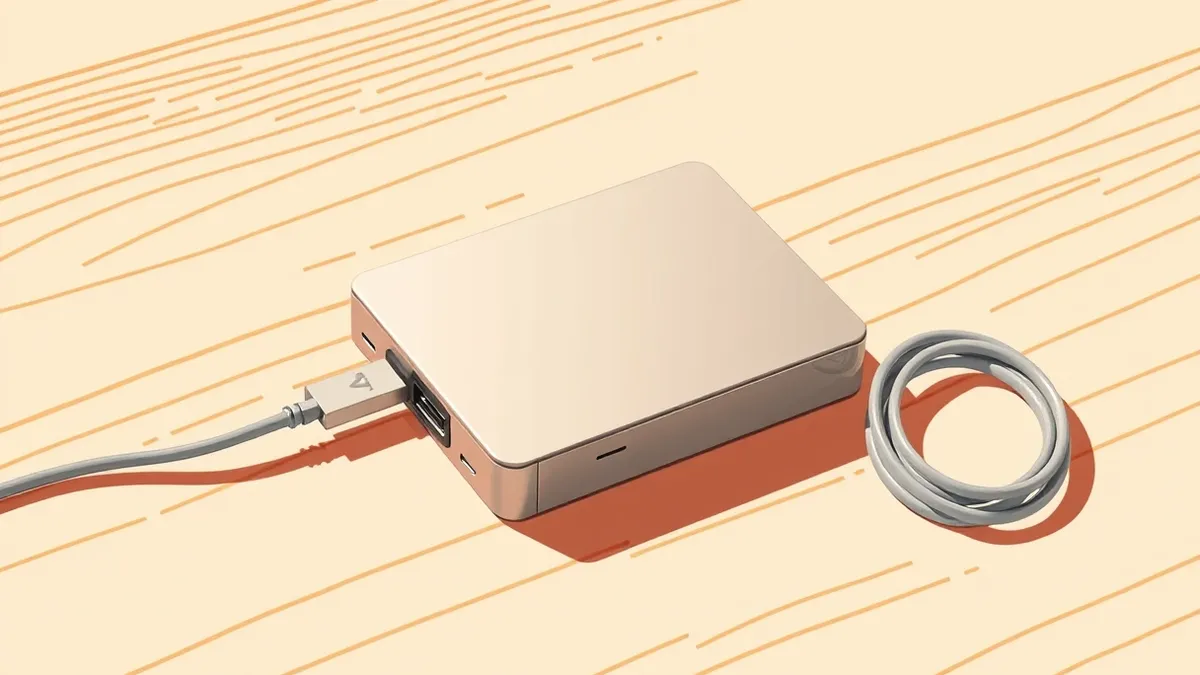
An offline backup is a copy of your important files stored on a physical drive that is disconnected from your computer and network. If malware locks your data, you can plug this drive back in and restore your files without paying a ransom. This method works because the malware cannot reach the disconnected storage.
The Library Analogy for Data Safety
Imagine your computer is a public library where anyone can walk in. Your files are the books on the shelves. A ransomware attack is like a group of vandals who enter the library and lock every book in a steel cage. They demand payment to open the cages. If you have an offline backup, you have a second library located in a secure warehouse miles away. The vandals cannot reach this second library because it has no doors connected to the public street. You can simply move your readers to the warehouse and continue reading. The books in the warehouse are safe because they were never in the same building as the vandals.
Why Connected Backups Fail
Most people assume that backing up files to the cloud or a network drive is enough. This assumption is dangerous. Modern ransomware is designed to hunt for connected storage. It scans your computer for any drive that shares a connection with the infected system. If your backup drive is plugged in, the malware sees it as just another folder. It encrypts the backup files at the same time it encrypts your main files. You lose both copies. The cloud is not immune either. If your cloud service allows automatic sync, the malware might upload encrypted files, replacing your clean copies. You need a break in the chain of connectivity.
The Air Gap Principle
The term air gap refers to a physical separation between your active computer and your backup storage. There is no cable, no Wi-Fi signal, and no Bluetooth connection between them. This isolation creates a barrier that software cannot cross. Malware lives in the digital world. It needs a digital path to move from one device to another. By removing that path, you remove the threat. Think of the air gap as a moat around a castle. The attackers can stand on the shore and shout, but they cannot cross the water. Your data remains secure inside the walls.
Key Terms for Offline Storage
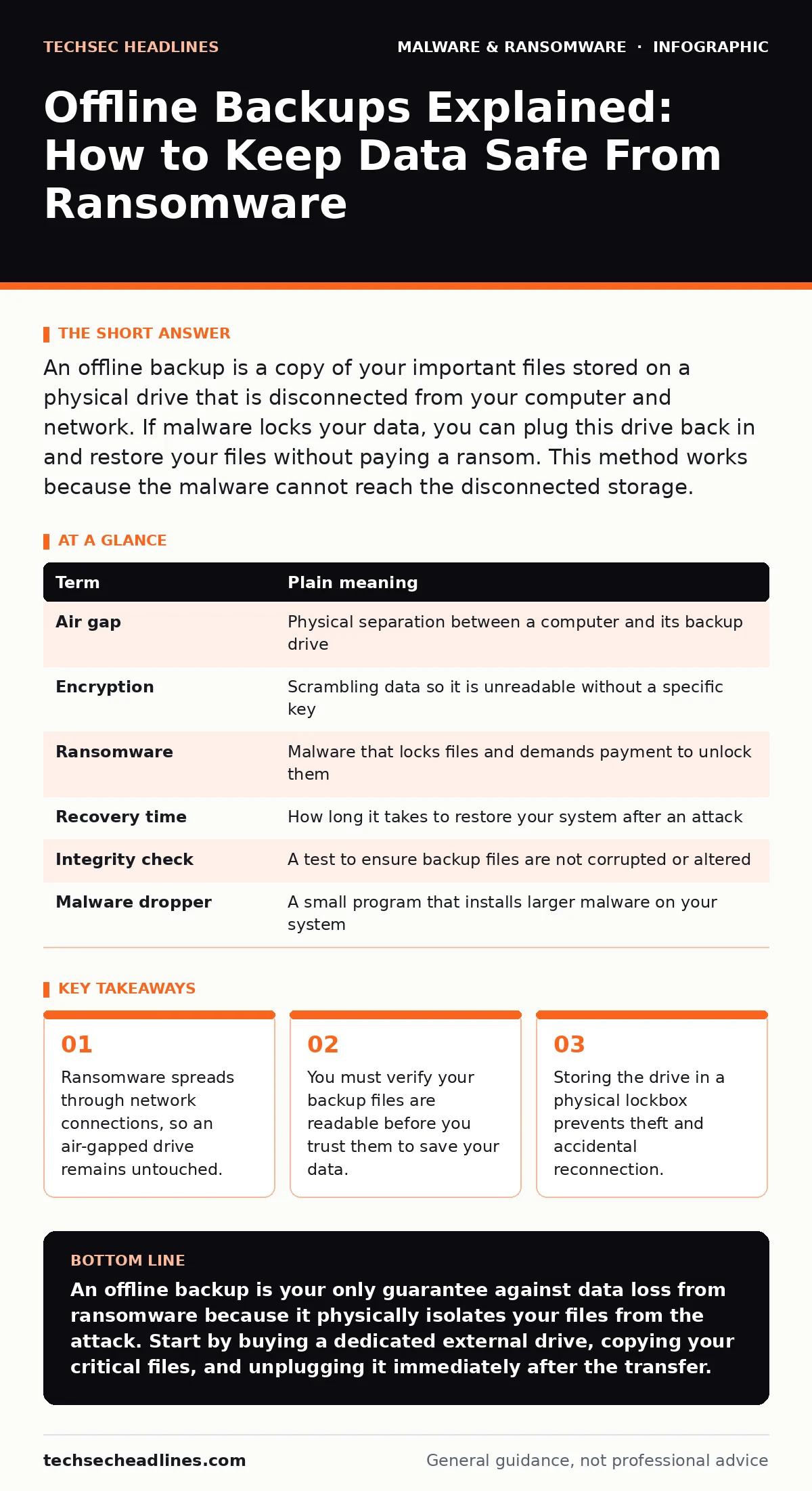
| Term | Plain meaning |
|---|---|
| Air gap | Physical separation between a computer and its backup drive |
| Encryption | Scrambling data so it is unreadable without a specific key |
| Ransomware | Malware that locks files and demands payment to unlock them |
| Recovery time | How long it takes to restore your system after an attack |
| Integrity check | A test to ensure backup files are not corrupted or altered |
| Malware dropper | A small program that installs larger malware on your system |
The Hidden Cost of Trust
Many users create a backup and then forget it exists. This is a critical failure point. You cannot trust a backup you have not tested. Imagine you have a fire extinguisher. If you never check the pressure gauge, you do not know if it will work when you need it. Backups can fail silently. The drive might be full, or the files might be corrupted. You must open the backup drive and try to open a few files. If the files open correctly, the backup is valid. If they are empty or damaged, the backup is useless. This verification step is non-negotiable. It is the only way to know you have a safety net.
See also: Ransomware Attack Chain: The 5 Stages Explained · What is Malvertising: How Ads Infect Your Browser Without Clicks
Physical Security Matters
An offline drive is only safe if it is physically secure. If someone steals your backup drive, they have your data. If the drive is encrypted, they cannot read it, but they can destroy it. You should store the drive in a lockbox or a safe. This protects against theft and accidental damage. You should also keep the drive away from heat and moisture. Physical degradation is a slow threat. A drive left in a hot car may fail within a few years. Treat the drive with the same care as you would a hard drive. The physical condition of the storage medium determines its longevity.
First Practical Steps to Start
- Buy a new external hard drive that is large enough to hold your important files.
- Copy your critical documents, photos, and project files to this new drive.
- Unplug the drive from your computer immediately after the transfer is complete.
Maintenance and Rotation
You cannot set an offline backup and forget it forever. Your data changes. You create new files and delete old ones. You must update your backup regularly. A good practice is to use two drives. You rotate them. One drive stays with you for a week, then you swap it with the other drive. The drive that goes back into the safe is now offline. The drive that comes out is connected for a week. This rotation ensures you have two offline copies. One is current, and one is slightly older. This protects against ransomware that might have been present on your computer for a week before you noticed it. If the malware infected your computer three days ago, your older drive from last week is still clean.
Understanding the Attack Chain
Ransomware does not appear out of nowhere. It follows a specific path. It often starts with a malicious email or a compromised website. You might see more details in our guide on the ransomware attack chain. The malware enters your system and spreads. It looks for weaknesses. It checks for connected drives. If it finds an offline drive, it cannot touch it. This breaks the chain. Understanding how the malware moves helps you appreciate why the air gap works. The malware is blind to devices it cannot see. It cannot encrypt what it cannot reach.
What Happens After an Attack
If you suffer a ransomware attack, you will need to recover your system. This process takes time. You will need to reinstall your operating system and software. You will then restore your files from the offline backup. This is where the recovery time objective comes into play. You need to know how quickly you can get back to work. Having a tested offline backup reduces this time significantly. You do not need to negotiate with criminals. You simply restore your files. This is the ultimate advantage of offline storage. You retain control of your data.
Final Verification Routine
Before you disconnect your backup drive, perform a final check. Ensure the copy process finished without errors. Most operating systems show a progress bar. Then, eject the drive safely using the system tray icon. This ensures all data is written to the disk. Pulling the plug abruptly can corrupt files. Once ejected, store the drive in its secure location. Do not plug it in again until your next backup cycle. This discipline is what separates a working backup from a failed one. Consistency is key to long-term security.
Key takeaways
- Ransomware spreads through network connections, so an air-gapped drive remains untouched.
- You must verify your backup files are readable before you trust them to save your data.
- Storing the drive in a physical lockbox prevents theft and accidental reconnection.
An offline backup is your only guarantee against data loss from ransomware because it physically isolates your files from the attack. Start by buying a dedicated external drive, copying your critical files, and unplugging it immediately after the transfer.
Frequently asked questions
Can I use a USB stick for offline backups?
You can, but USB sticks are less reliable and have smaller storage capacity. A hard drive or SSD is better for large amounts of data.
How often should I update my offline backup?
Update it at least once a week. More frequent updates ensure you lose less data if an attack occurs.
Is cloud storage considered offline?
No, cloud storage is connected to the internet. It can be accessed by malware if your account is compromised.
Do I need to encrypt my offline backup?
Yes, encryption protects your data if the drive is stolen. It adds a layer of security beyond the physical lockbox.
How this guide was produced: written by the TechSec Headlines editorial team with AI assistance, checked against the public references listed below, and reviewed when the facts change. See our editorial policy or report an error.