
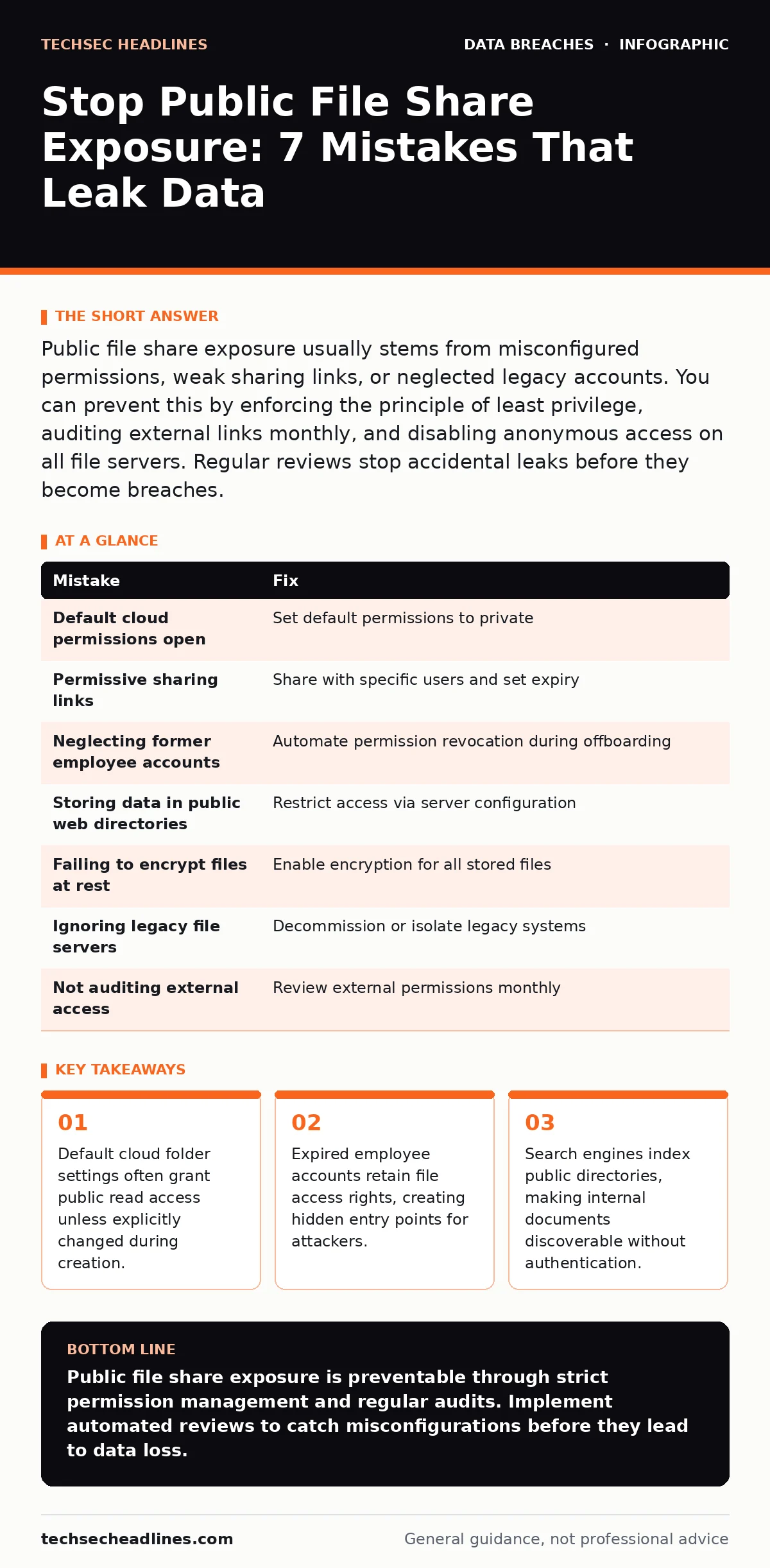
Public file share exposure usually stems from misconfigured permissions, weak sharing links, or neglected legacy accounts. You can prevent this by enforcing the principle of least privilege, auditing external links monthly, and disabling anonymous access on all file servers. Regular reviews stop accidental leaks before they become breaches.
Mistake 1: Leaving Default Cloud Permissions Open
Cloud storage services often create shared folders with public read access by default. You create a folder to store project assets, but the system assumes you want easy collaboration. This assumption leaves your data visible to anyone on the internet. Attackers scan for these open directories to harvest intellectual property or sensitive customer records. The visibility is immediate and global.
Why it hurts:
Public folders act as open doors. Anyone can view, download, or sometimes modify the contents. Search engines crawl these spaces and index your files. This means competitors or malicious actors can find your data through simple web searches. The exposure happens before you even realize the folder exists.
The fix:
Change the default permission settings to private for all new folders. Enable organization-wide policies that require explicit approval for any public link. Review existing folders to revoke unnecessary read access. This ensures only authorized users see the content.
Mistake 2: Using Permissive Sharing Links
You generate a link to share a file with a colleague, but you select "Anyone with the link" instead of specific email addresses. This convenience creates a wide attack surface. The link can be forwarded to unintended recipients or posted on social media. The file remains accessible until you manually revoke the link or it expires, if expiration is even enabled.
Why it hurts:
Permissive links bypass authentication checks. The recipient does not need an account to view the file. This makes it easy for attackers to guess or obtain valid links through phishing or social engineering. Once the link is in the wild, you lose control over who accesses the data.
The fix:
Always share files with specific user accounts rather than open links. Set expiration dates on all shared links to limit the window of exposure. Disable the ability to download or print files if only viewing is required. This restricts access to verified identities.
Mistake 3: Neglecting Former Employee Accounts
When an employee leaves, their user account is often disabled, but their access rights to shared drives remain active. You assume the account is closed, but the file permissions persist. Attackers who obtain credentials for a former employee can still access those shared resources. This is a common entry point for data theft.
Why it hurts:
Stale accounts are invisible to daily operations but visible to attackers. They provide a backdoor into your file storage systems. If the former employee had broad permissions, the attacker inherits that access. This can lead to the exposure of protected health information or trade secrets.
The fix:
Implement an automated offboarding process that revokes all file access immediately when an account is disabled. Conduct quarterly audits to identify and remove orphaned permissions. This ensures that access rights align with current employment status.
Mistake 4: Storing Sensitive Data in Public Web Directories
Web servers sometimes host public folders that are intended for public content but are misconfigured to include private data. You might store backup files or administrative scripts in a directory that is accessible via HTTP. If the server configuration lacks proper access controls, these files become publicly downloadable. This is a classic misconfiguration error.
Why it hurts:
Public web directories are easily discovered by automated scanning tools. Attackers look for common file extensions like CSV, SQL, or ZIP in these locations. Finding sensitive data here is like leaving your house keys under the mat. It requires no hacking skill, only observation.
The fix:
Restrict access to web directories using server configuration rules. Ensure that sensitive files are stored outside the public web root. Use authentication for any directory that contains non-public data. This prevents direct browser access to internal files.
Mistake 5: Failing to Encrypt Files at Rest
You secure your network perimeter but store files in clear text on shared drives. If an attacker gains access to the storage system, they can read all files without needing to bypass encryption. This is a common oversight in internal file sharing setups. Encryption adds a layer of protection even if access controls fail.
Why it hurts:
Unencrypted files are readable by anyone who gains physical or remote access to the storage medium. This includes backup tapes, disk images, or compromised servers. If your data is stolen, the attacker can immediately use it for synthetic identity fraud or data extortion. Encryption renders the stolen data useless without the key.
The fix:
Enable encryption for all stored files, both on-premises and in the cloud. Manage encryption keys separately from the stored data. Ensure that decryption requires user authentication. This protects your data even if the storage system is compromised.
See also: How Data Center Attacks Work and What They Mean for You
Mistake 6: Ignoring Legacy File Servers
Older file servers often run outdated software with known vulnerabilities. You may have migrated most users to cloud storage, but legacy systems remain active for backward compatibility. These systems lack modern security features and are difficult to patch. They become low-hanging fruit for attackers scanning for easy targets.
Why it hurts:
Legacy systems often support weak authentication protocols that are easily bypassed. They may also lack audit logging, making it hard to detect unauthorized access. An attacker can exploit a known vulnerability to gain full control of the server. This can lead to the exposure of critical business data.
The fix:
Decommission legacy file servers as soon as possible. Migrate remaining data to secure, modern storage solutions. If decommissioning is not immediate, isolate these servers from the main network. Apply all available security patches and monitor for suspicious activity.
Mistake 7: Not Auditing External Access Regularly
You grant external partners access to shared folders but never review who still has access. Over time, the list of external users grows, and some may no longer need access. This accumulation of permissions increases the risk of accidental exposure. Regular audits are necessary to maintain security hygiene.
Why it hurts:
External users may have weaker security practices than your internal team. They might share credentials or use unsecured devices. If an external account is compromised, the attacker gains access to your shared data. Without regular audits, you remain unaware of these risks.
The fix:
Conduct monthly reviews of all external sharing permissions. Remove access for users who no longer require it. Implement a process for external users to request access, rather than granting it automatically. This keeps your sharing environment clean and secure.
| Mistake | Fix |
|---|---|
| Default cloud permissions open | Set default permissions to private |
| Permissive sharing links | Share with specific users and set expiry |
| Neglecting former employee accounts | Automate permission revocation during offboarding |
| Storing data in public web directories | Restrict access via server configuration |
| Failing to encrypt files at rest | Enable encryption for all stored files |
| Ignoring legacy file servers | Decommission or isolate legacy systems |
| Not auditing external access | Review external permissions monthly |
Key takeaways
- Default cloud folder settings often grant public read access unless explicitly changed during creation.
- Expired employee accounts retain file access rights, creating hidden entry points for attackers.
- Search engines index public directories, making internal documents discoverable without authentication.
Public file share exposure is preventable through strict permission management and regular audits. Implement automated reviews to catch misconfigurations before they lead to data loss.
Frequently asked questions
How do I know if my files are publicly accessible?
Use online scanning tools that check for open directories and shared links. Review your cloud storage settings to ensure no folders are set to public.
Can I recover data that was accidentally made public?
You can revoke access immediately, but you cannot guarantee the data was not copied. Assume any publicly exposed data is compromised.
Do encrypted files protect me if the share is public?
Encryption protects the content, but the file metadata may still be visible. Attackers can see file names and sizes, which may reveal sensitive information.
How often should I audit file permissions?
Monthly audits are recommended for high-risk data. Quarterly reviews may suffice for low-risk, internal-only files. Adjust frequency based on your risk tolerance.
How this guide was produced: written by the TechSec Headlines editorial team with AI assistance, checked against the public references listed below, and reviewed when the facts change. See our editorial policy or report an error.