
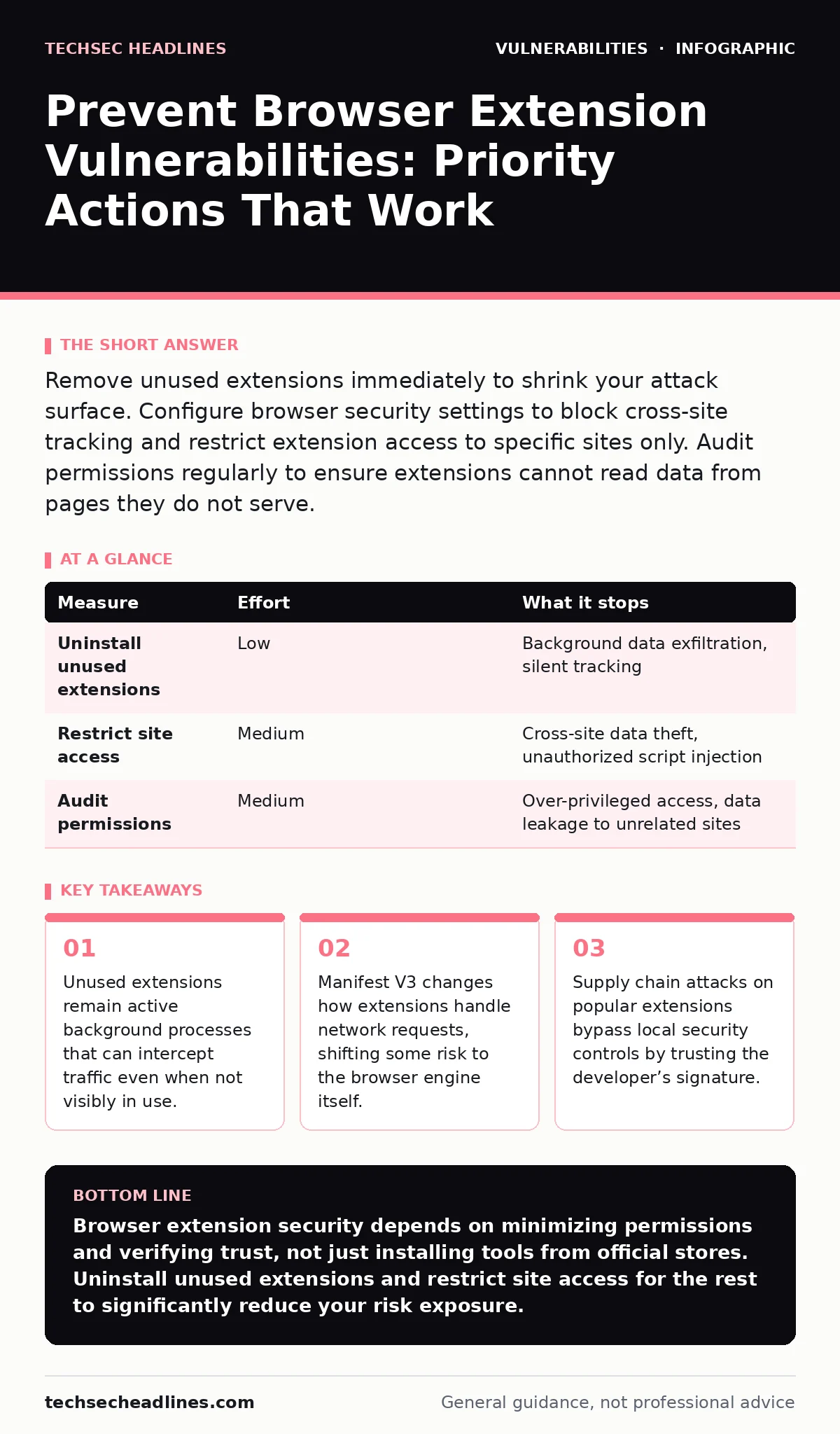
Remove unused extensions immediately to shrink your attack surface. Configure browser security settings to block cross-site tracking and restrict extension access to specific sites only. Audit permissions regularly to ensure extensions cannot read data from pages they do not serve.
Remove Unused Extensions Immediately
Browser extensions run with elevated privileges that standard web pages cannot access. Each installed extension expands the attack surface of your browser. You do not need ten extensions to browse the web safely. Remove any extension you have not used in the last month. This action reduces the number of potential entry points for attackers. It also reduces the memory footprint and processing overhead of your browser.
Imagine you keep an old password manager installed while using a new one. The old extension still has access to your login fields. An attacker compromising the old extension can still steal credentials. Removing it eliminates this silent risk. This is the highest impact action you can take. It requires no technical knowledge and provides immediate security benefits.
| Measure | Effort | What it stops |
|---|---|---|
| Uninstall unused extensions | Low | Background data exfiltration, silent tracking |
| Restrict site access | Medium | Cross-site data theft, unauthorized script injection |
| Audit permissions | Medium | Over-privileged access, data leakage to unrelated sites |
Restrict Extension Site Access
Most browsers allow you to control which websites an extension can access. By default, many extensions request access to "all websites." This is unnecessary for tools that only function on specific platforms. Change this setting to "On specific sites only." Select only the domains where the extension is required. This limits the scope of any potential compromise.
If an extension designed for email services cannot access banking sites, it cannot steal financial data even if compromised. This containment strategy is critical. It prevents a low-severity vulnerability in one extension from affecting high-value targets. You must check this setting for every extension after installation. Do not accept the default "all sites" permission unless the tool genuinely requires global presence, such as a global ad blocker.
Audit Extension Permissions Regularly
Extensions request permissions to perform their functions. Some permissions are dangerous. Access to "read and change all your data on all websites" allows an extension to inject scripts, modify page content, and capture keystrokes. Review the permissions listed for each extension. Compare them against the extension’s stated purpose.
If a color theme extension requests access to your browsing history, reject it. The permission does not match the function. This mismatch indicates either poor design or malicious intent. Regular audits help you catch changes in permission requests after updates. Some extensions request additional permissions in later versions. You must approve these changes explicitly. Do not blindly accept permission upgrades.
Verify Developer Reputation and Code
Before installing an extension, research the developer. Look for a history of transparent security practices. Check if the extension is open source. Open source allows independent security researchers to audit the code. Closed source extensions require you to trust the vendor completely. This trust is a significant risk factor.
Imagine you install a productivity tool from an unknown developer. The tool works perfectly for a year. Then, the developer sells the extension to a marketing firm. The new owner adds tracking code to the next update. You now have a spyware tool in your browser. Verifying the developer’s long-term reputation and code transparency mitigates this risk. Prefer extensions with a long track record and active community support.
Configure Browser Security Settings
Your browser provides built-in protections that limit extension capabilities. Enable "Do Not Track" and block third-party cookies. These settings reduce the amount of data extensions can access. Disable "Allow sites to check if you have PDF plugins installed" and other legacy features. These features can be exploited to fingerprint your browser or inject malicious content.
Some browsers allow you to disable extensions in private browsing mode. Use this feature. Private mode isolates your session from persistent extensions. This prevents extensions from logging your private browsing activity. It also prevents them from accessing data stored in your private session. This isolation is a powerful defense against data leakage.
Monitor for Supply Chain Attacks
Extension vulnerabilities often originate in the supply chain. Attackers compromise the developer’s account or build system. They inject malicious code into legitimate updates. You cannot prevent this with local settings alone. You must rely on detection and rapid response. Monitor for unusual behavior in your browser. Slow performance, unexpected pop-ups, or redirected searches may indicate a compromised extension.
If you suspect an extension has been compromised, uninstall it immediately. Check for reports of supply chain attacks on popular extensions. Security researchers often publish warnings about compromised tools. Stay informed about the security posture of the extensions you use. This awareness helps you react quickly to emerging threats.
Understand What Does Not Work
Many users rely on antivirus software to protect their browsers. Antivirus scans files on your disk. It does not inspect the runtime behavior of browser extensions in real time. An extension can be signed and verified by the store, yet still contain malicious logic that executes only under specific conditions. Antivirus cannot stop this.
Another common misconception is that using a different browser eliminates extension risks. Each browser has its own extension ecosystem with similar permission models. A vulnerability in one browser’s extension framework may not exist in another, but the risk of malicious extensions remains. You must apply the same prevention measures regardless of the browser you choose.
Implement Automatic Updates Carefully
Automatic updates keep your browser and extensions patched against known vulnerabilities. However, they also mean you cannot verify the code before it runs. If an extension is compromised, automatic updates will install the malicious version. You must balance convenience with security.
Enable automatic updates for the browser itself. This ensures you receive critical security patches. For extensions, consider disabling automatic updates for high-risk tools. Manually update them after verifying the changelog and developer notifications. This extra step provides a window to detect suspicious changes. It adds effort but increases security for critical tools.
Key takeaways
- Unused extensions remain active background processes that can intercept traffic even when not visibly in use.
- Manifest V3 changes how extensions handle network requests, shifting some risk to the browser engine itself.
- Supply chain attacks on popular extensions bypass local security controls by trusting the developer’s signature.
Browser extension security depends on minimizing permissions and verifying trust, not just installing tools from official stores. Uninstall unused extensions and restrict site access for the rest to significantly reduce your risk exposure.
Frequently asked questions
Can a browser extension steal my passwords?
Yes, if it has permission to read data on login pages. Extensions can capture keystrokes or read form fields before you submit them. Always restrict extension access to specific sites to prevent this.
Do I need to worry about extensions in private browsing mode?
Yes, unless your browser specifically blocks them there. Many extensions run in private windows by default. Check your browser settings to disable extensions in private mode for better isolation.
How do I know if an extension has been hacked?
Look for sudden changes in behavior, such as new ads or redirects. Check security forums for reports of supply chain attacks. If an extension requests new permissions unexpectedly, uninstall it immediately.
Are open-source extensions safer than closed-source ones?
Generally, yes, because the code is visible for audit. However, many users do not review the code themselves. Open source allows experts to find vulnerabilities, but you still rely on the maintainer’s security practices.
How this guide was produced: written by the TechSec Headlines editorial team with AI assistance, checked against the public references listed below, and reviewed when the facts change. See our editorial policy or report an error.