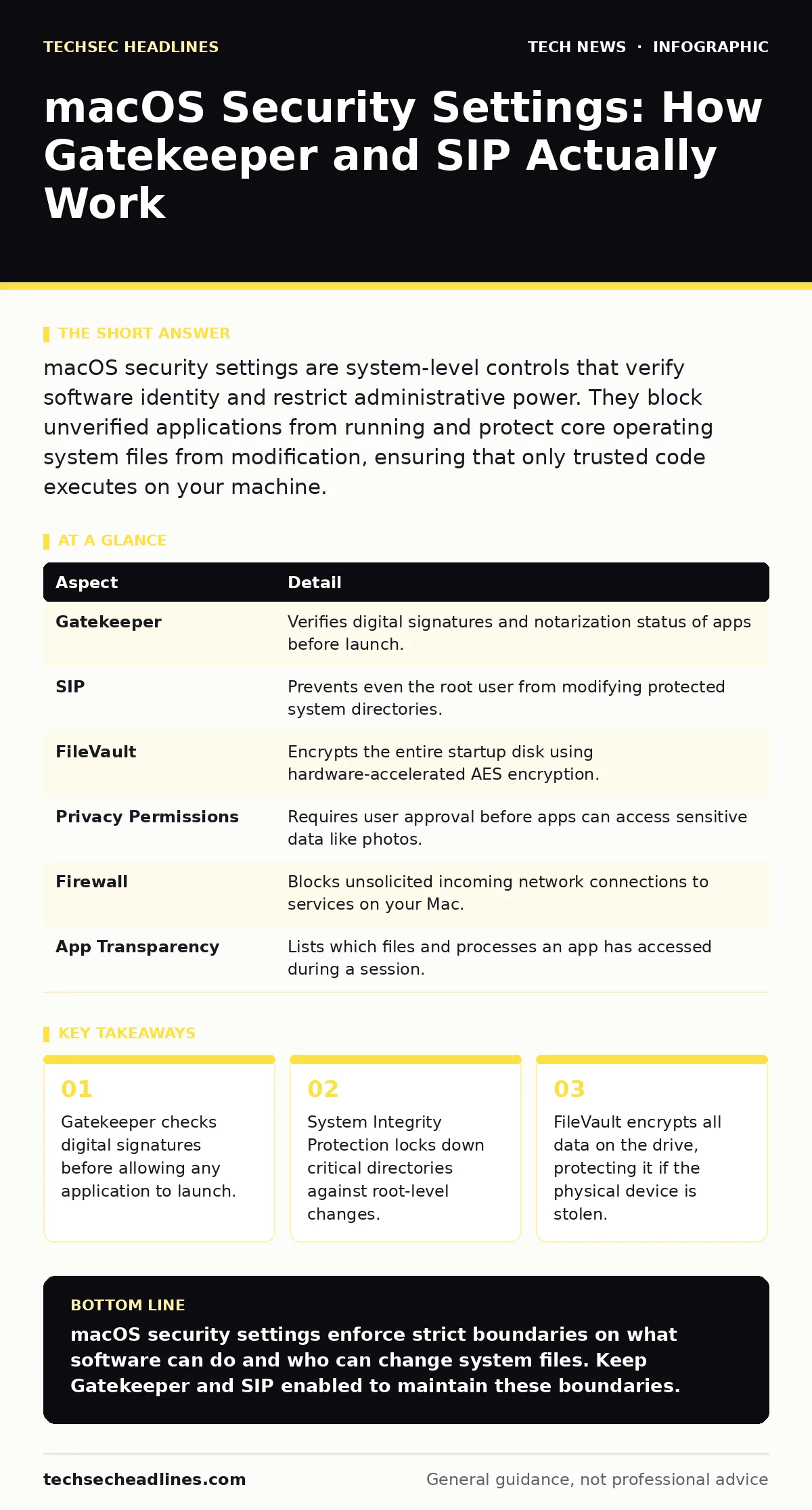
macOS security settings are system-level controls that verify software identity and restrict administrative power. They block unverified applications from running and protect core operating system files from modification, ensuring that only trusted code executes on your machine.
The Bouncer at the Club Door
Imagine a nightclub with a strict bouncer. The bouncer does not care how rich or famous you are. If you do not have the right ticket, you do not get in. macOS security settings act like that bouncer. They stand between the hardware and the software you want to run. They check credentials before granting access. This prevents malicious code from entering the system quietly.
Most people think security is about antivirus software. That is a misconception. Antivirus scans for known bad patterns. macOS settings prevent unknown bad patterns from running in the first place. They are the foundation. Without them, other tools have nothing to protect. You must understand these controls to secure your machine effectively.
| Aspect | Detail |
|---|---|
| Gatekeeper | Verifies digital signatures and notarization status of apps before launch. |
| SIP | Prevents even the root user from modifying protected system directories. |
| FileVault | Encrypts the entire startup disk using hardware-accelerated AES encryption. |
| Privacy Permissions | Requires user approval before apps can access sensitive data like photos. |
| Firewall | Blocks unsolicited incoming network connections to services on your Mac. |
| App Transparency | Lists which files and processes an app has accessed during a session. |
Gatekeeper and Code Signing
Gatekeeper is the first line of defense. It checks every application you try to open. It looks for a digital signature. A digital signature is a cryptographic proof that the code came from a specific developer. It also checks if Apple has notarized the app. Notarization means Apple scanned the app for malware before you downloaded it.
If an app lacks this signature, Gatekeeper blocks it. You see a warning message. You can override this, but you should not. Overriding it tells the system you trust the code. If the code is malicious, you have just invited it in. This mechanism stops many drive-by downloads. It forces you to make a conscious choice to run unverified software.
System Integrity Protection
System Integrity Protection, or SIP, adds a layer above standard user permissions. Even if you have an administrator account, you cannot change certain system files. These files are critical for the operating system to function. If malware gains admin rights, it cannot modify these protected areas.
This stops rootkits. Rootkits are viruses that hide by modifying system files. SIP makes this nearly impossible. It also protects the kernel. The kernel is the core of the operating system. It manages hardware resources. If an attacker changes the kernel, they control the entire machine. SIP keeps the kernel safe.
You can disable SIP for development work. This is dangerous. Disabling it leaves the system vulnerable. Only do this if you understand the risks. Re-enabling it requires booting into Recovery Mode. This process is complex for average users. Keep SIP enabled at all times.
FileVault and Disk Encryption
FileVault encrypts your entire hard drive. It uses the AES standard. This is a strong encryption method. It protects your data if someone steals your physical Mac. Without your password, they cannot read the files. The encryption happens in real time. You do not need to encrypt files individually.
The key to decryption is stored in the Secure Enclave. This is a dedicated chip on the Mac processor. It never leaves the chip. This prevents attackers from extracting the key remotely. If you lose your password, your data is gone. There is no backdoor. Apple cannot recover it for you.
Privacy Permissions and Sandboxing
macOS uses sandboxing for many apps. Sandboxing restricts an app to its own isolated environment. It cannot touch other apps or system files. It cannot access your contacts or camera without permission. You grant these permissions manually.
This limits damage. If an app is compromised, the attacker is stuck in the sandbox. They cannot move laterally to other parts of the system. You can review these permissions in System Settings. You can revoke access at any time. This is different from older operating systems. In the past, apps had full access by default.
You should check these settings regularly. Apps often request more permissions than they need. A calculator app does not need your microphone. Deny unnecessary requests. This reduces your attack surface. It makes it harder for malware to gather data.
What People Usually Get Wrong
Many users believe that being an administrator means total control. This is false. SIP restricts admin power. You cannot delete system files even as admin. This confuses many users. They think their Mac is broken. It is actually secure.
Another mistake is disabling security features for convenience. Users often turn off Gatekeeper to install cracked software. This exposes them to malware. The convenience is not worth the risk. Malware can steal passwords and credit cards. It can encrypt your files for ransom.
How It Fits With Other Defences
macOS settings are not enough on their own. They work with other technologies. For example, encryption protects data at rest. HTTPS protects data in transit. These are different layers. You need both.
Think of it like a house. macOS settings are the locks on the doors. HTTPS is the security guard at the gate. Encryption is the safe in your bedroom. If one fails, the others still help. You should also consider USB security. Malicious USB devices can bypass some software controls. They can inject keystrokes.
Keeping your software updated is also vital. Updates patch holes in these security mechanisms. If you ignore updates, attackers can exploit known bugs. This renders your settings less effective. Always install security updates promptly.
The Hidden Cost of Security
Security has a trade-off. It adds friction. You have to approve permissions. You have to remember passwords. This can be annoying. But this friction is the point. It stops automated attacks. It forces attackers to interact with you.
The hidden cost is compatibility. Some older apps do not work with SIP. They may crash or fail to launch. You may need to find alternatives. This is the price of security. You cannot have both absolute compatibility and absolute security. You must choose.
Another cost is performance. Encryption uses CPU cycles. It slows down disk access slightly. Modern Macs handle this well. The impact is minimal. But it is there. You trade a tiny bit of speed for a lot of safety. This is a fair trade for most users.
Key takeaways
- Gatekeeper checks digital signatures before allowing any application to launch.
- System Integrity Protection locks down critical directories against root-level changes.
- FileVault encrypts all data on the drive, protecting it if the physical device is stolen.
- Privacy permissions isolate apps from accessing contacts, camera, and microphone without explicit consent.
macOS security settings enforce strict boundaries on what software can do and who can change system files. Keep Gatekeeper and SIP enabled to maintain these boundaries.
Frequently asked questions
Can I disable Gatekeeper permanently?
You can lower its restrictions, but you cannot fully disable it without using terminal commands that void security best practices.
Does SIP protect against all malware?
No, SIP protects system files. It does not stop malware from running in user space or stealing data from unprotected folders.
Is FileVault safe if I lose my password?
No, losing your FileVault password makes your data permanently inaccessible. There is no recovery method.
Do I need antivirus software on macOS?
macOS settings prevent many threats, but dedicated antivirus software can catch specific malware that bypasses these controls.
How this guide was produced: written by the TechSec Headlines editorial team with AI assistance, checked against the public references listed below, and reviewed when the facts change. See our editorial policy or report an error.